

Your have generated a video, and it’s ready! You like it… but you’d like to change or improve some scenes?
👉 Don’t regenerate the entire video! Instead, just can edit some scenes or regenerate them with AI. Find below how to do it:
✏️ Step-by-Step Guide
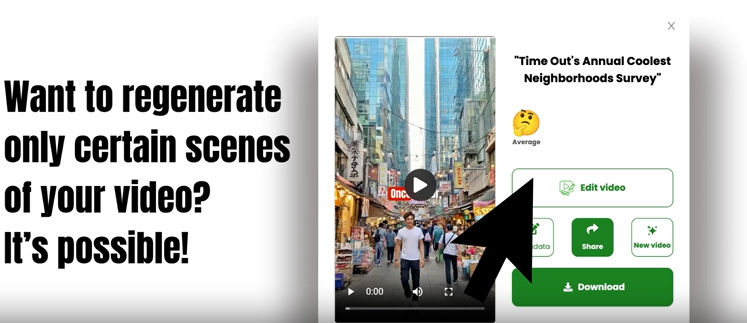
- 1 Click on Edit Video
Open the video editor. 
- 2 Select the scene
Choose the scene you want to modify or replace.
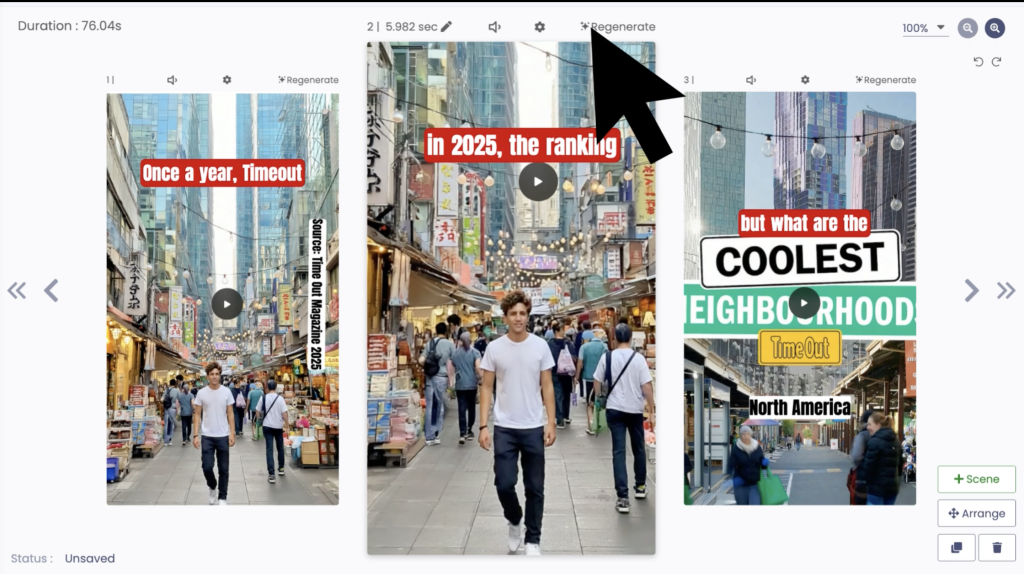
- 3 Click on Regenerate
You’ll then have several customization options:- ✅ Show or hide the presenter
- 🎙️ Change the presenter’s voice
- 🌍 Write a clear context describing where the scene takes place
- 🖼️ Add 1 or 2 images to enrich the context (these images will be used to generate the scene)
- 🎬 Describe the animation (e.g., “A woman running on the beach”)
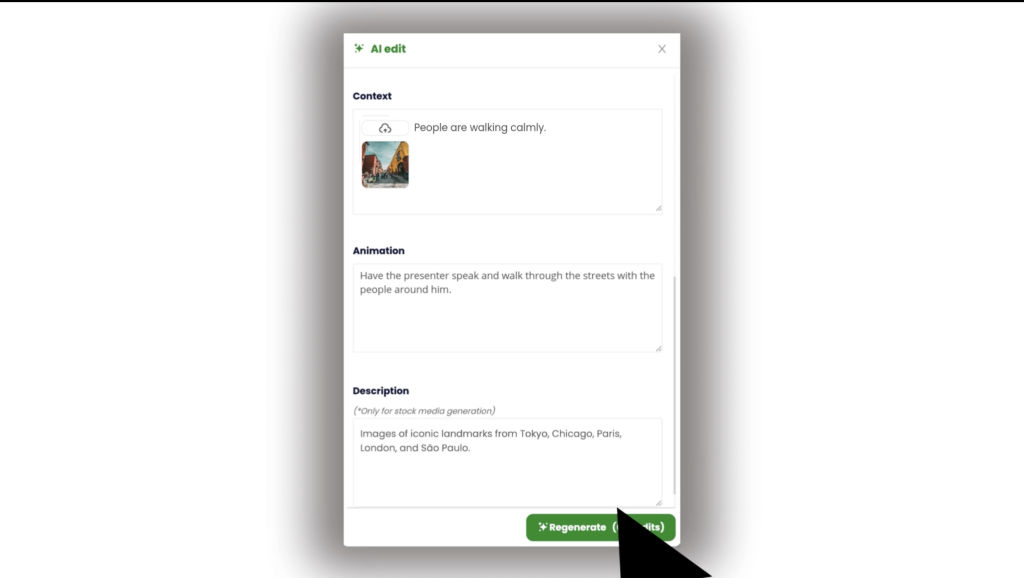
- Click on Regenerate again to launch the update.
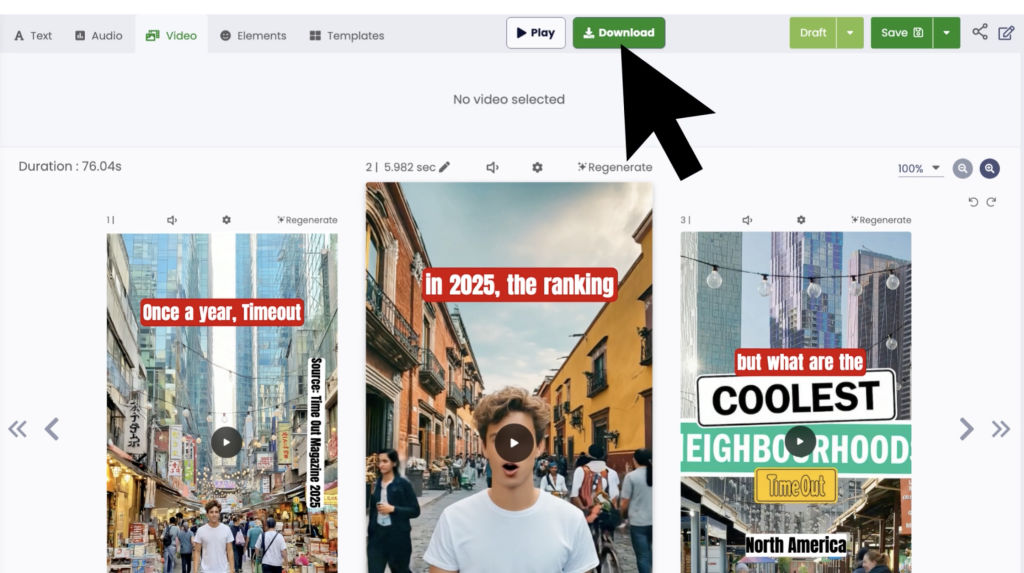
⏱️ How long does it take?
- Regenerating one scene takes about 3 minutes.
- You can edit another slide while waiting.
- ⚠️ Note: you can regenerate up to 2 scenes simultaneously. To regenerate a third one, wait until one of the first two is ready.
🎧 While You Wait…
Use this time to:
- Review and refine your texts
- Adjust the voice and background music, add some sound effects
- Add GIFs or specific visual elements
- Manage scene durations for better flow
👉 With these editing tools, you can fine-tune your video without starting over — saving time and making sure every detail matches your vision.
Leave a Reply