How to Get the AI Video that matches your expectation?
There are a few tips that can make your video generation much more effective. Follow these guidelines to get the best possible results every time.
🚩 Quick Summary – 9 Steps to Success
Write a Detailed Prompt
Writing a detailed prompt that describes, scene by scene, what you want and which characters are involved is always the best way to start your video.
In all cases, we will generate a new detailed video script for you that you can adjust as you wish.
💡 Pro tip: The more details you provide in your prompt, the better the AI can understand your vision and create exactly what you’re looking for.
Adjust the Scenes’ Images, Context and Animations
After you send your prompt, we will analyze it and create a new structured script, detailed scene by scene.
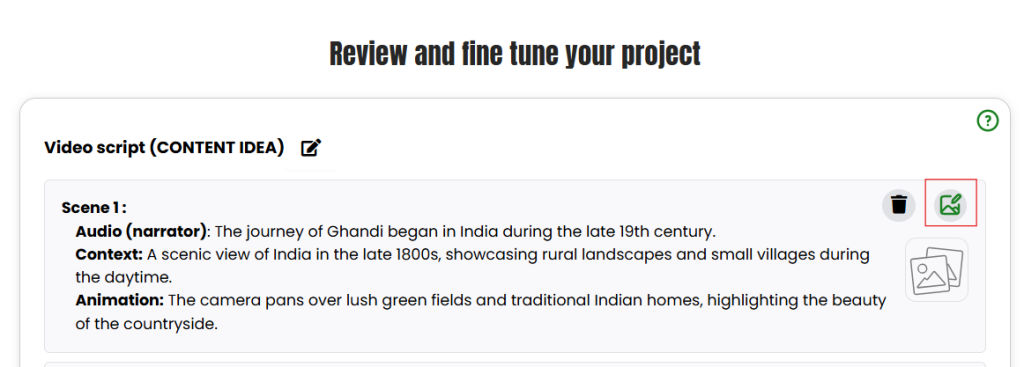
For each scene, you can see the context, what is said, which character appears in the video, and what the animation looks like.
At this step, it is VERY USEFUL to edit the scene, add images for characters and context, and adjust the animation you want.
To do that, click on the edit button shown in the interface:
Check What Character Speaks in the Scene
To have a character talking in the scene or presenting something with lip sync, make sure that:
Speaker field = Character to display
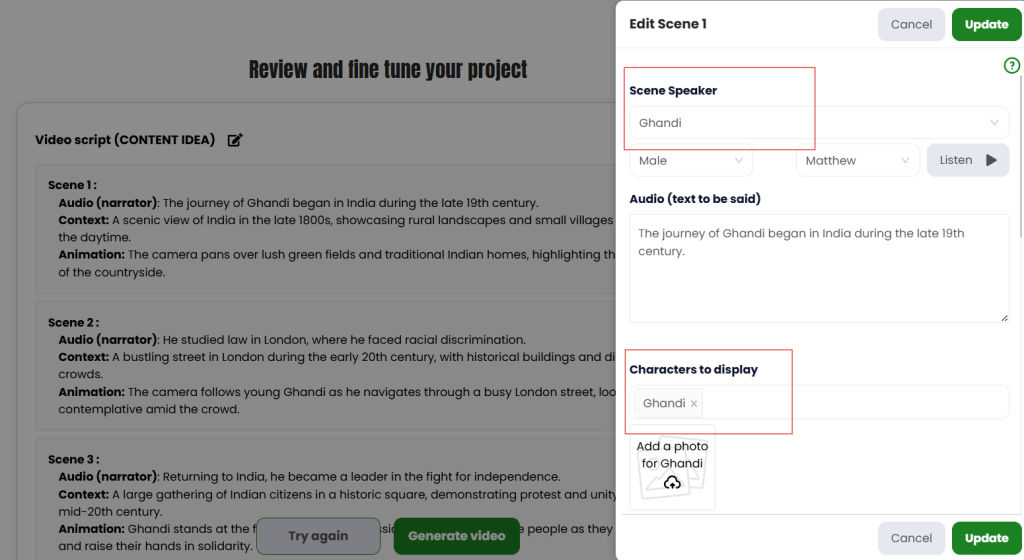
If you do that, the character will be featured in the scene and talking at the same time.
Note: If you want a voiceover on the scene and no character talking, select speaker = narrator, and for characters to display: do not list ‘narrator’.
Add or Generate Photos for Characters
Add or generate with AI photos for the characters featured in your video. This ensures visual consistency throughout your video.
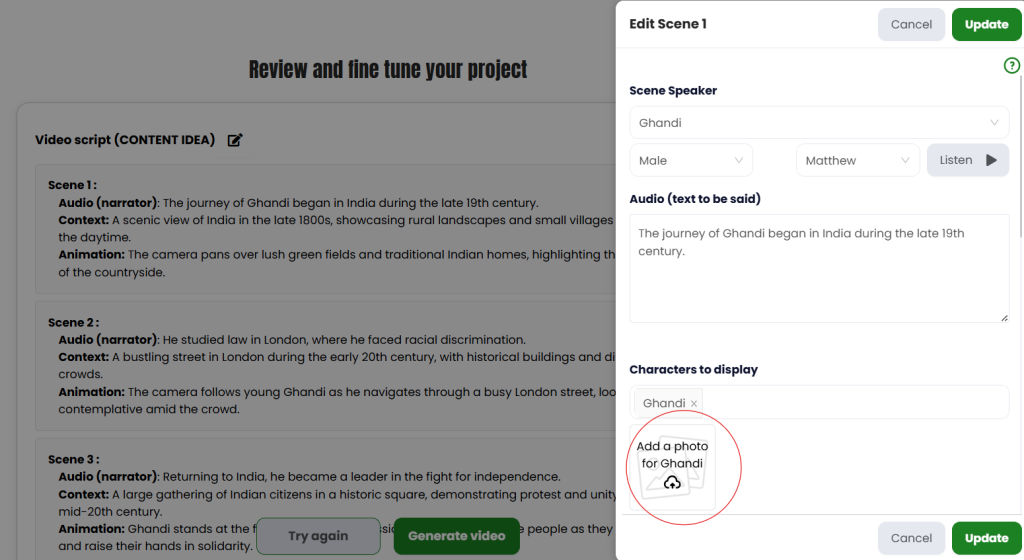
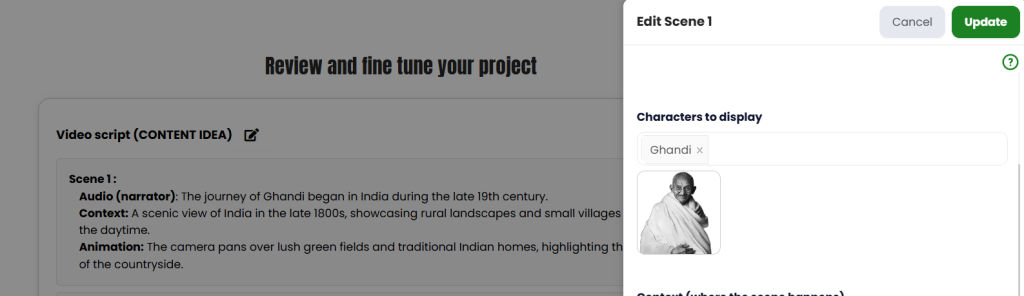
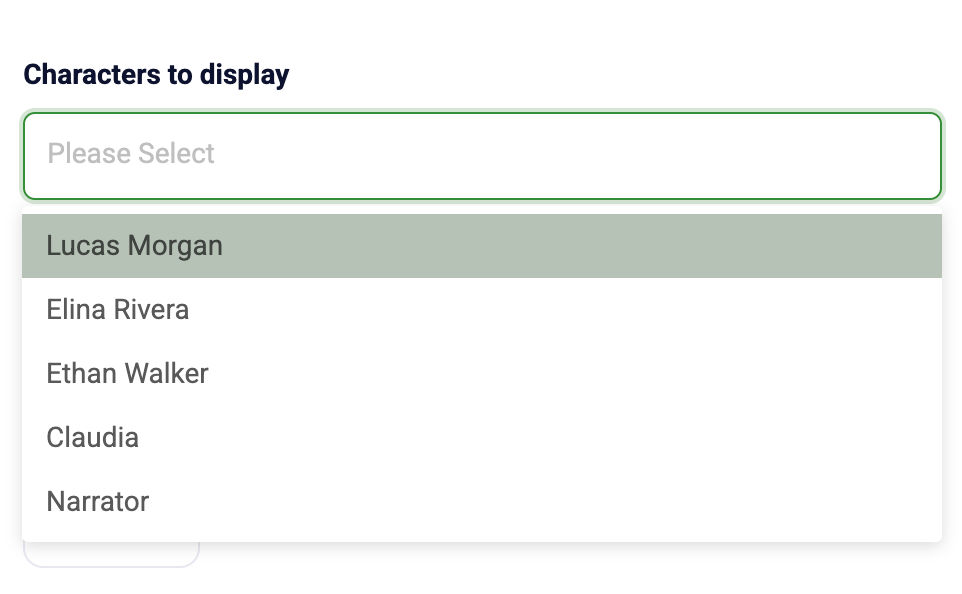
You can add multiple characters to the scene, but keep in mind that only one character can talk in one scene. We generate as many scenes as there are dialogues.
Add Context Images for Your Scenes
Still in the scene edit form, you can add up to 2 images to generate the context where your scene happens.
You can add images from your device or library, or generate the context images with AI.
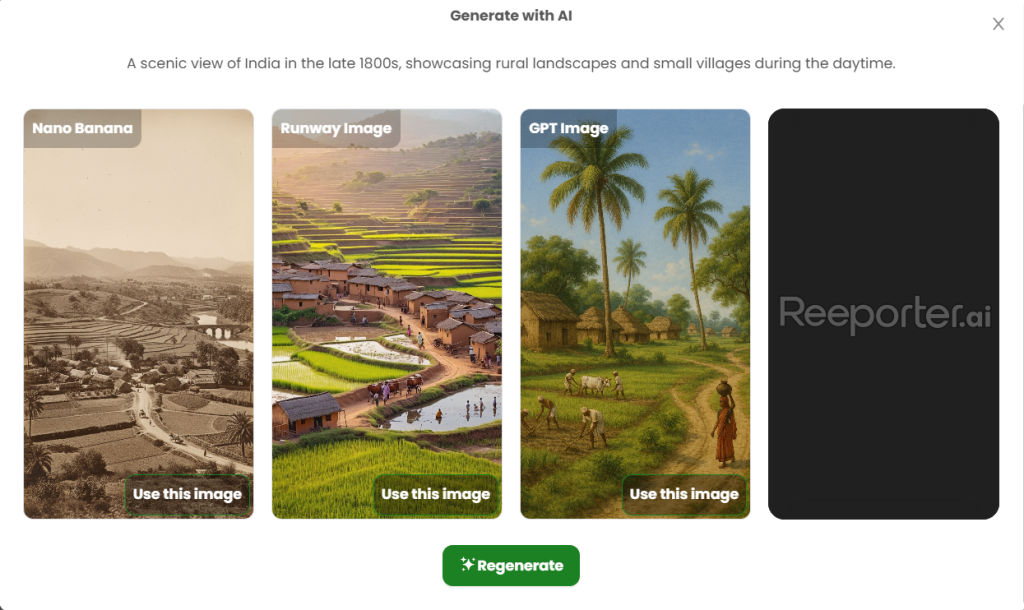
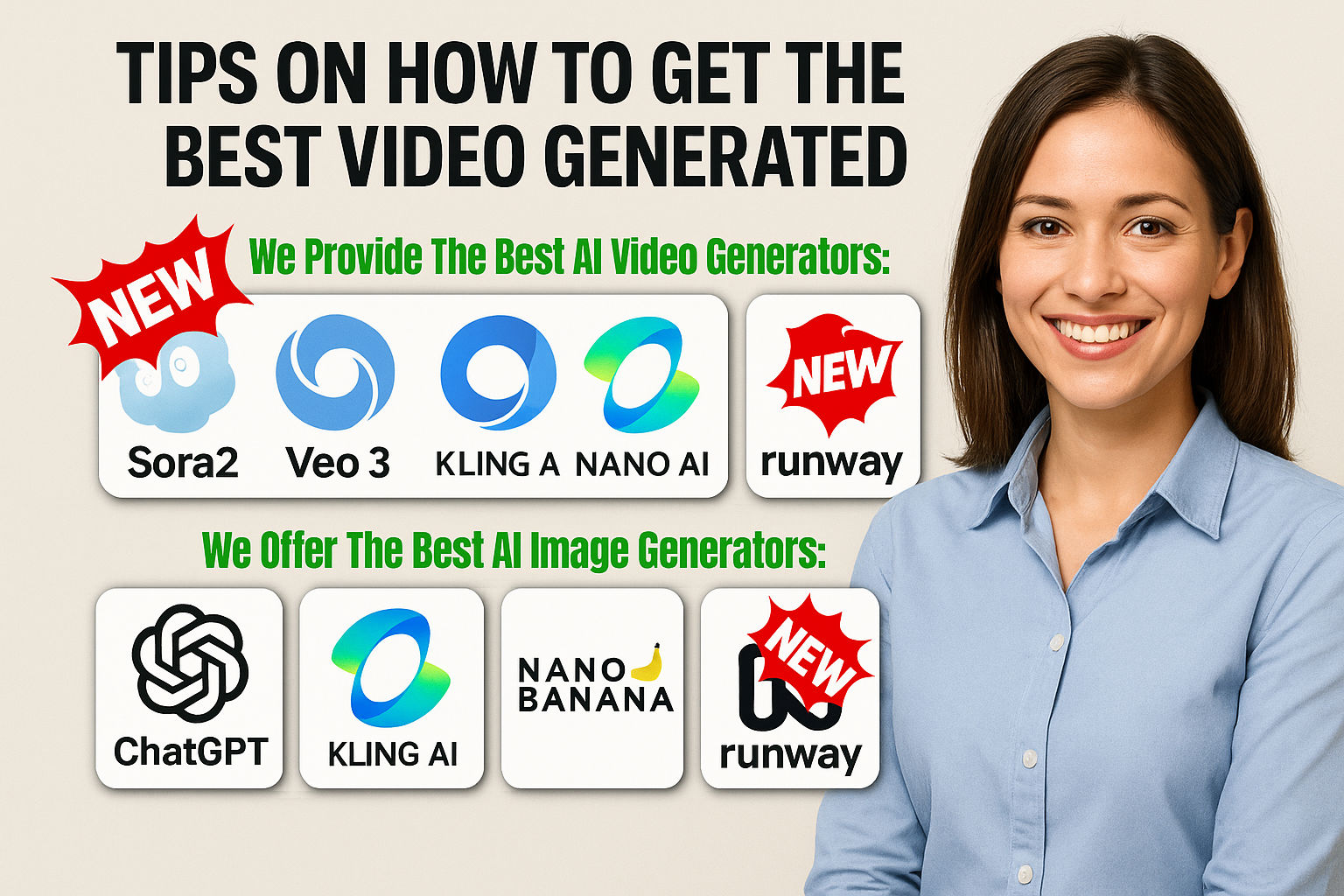
We offer multiple image generators such as Nanobana, ChatGPT, Runway, etc. You can also describe the context in the prompt.
Choose the Right Animation
Make sure that the animation is what you wish to have. If a character features in the scene, express animation for the characters and for what’s happening in the background.
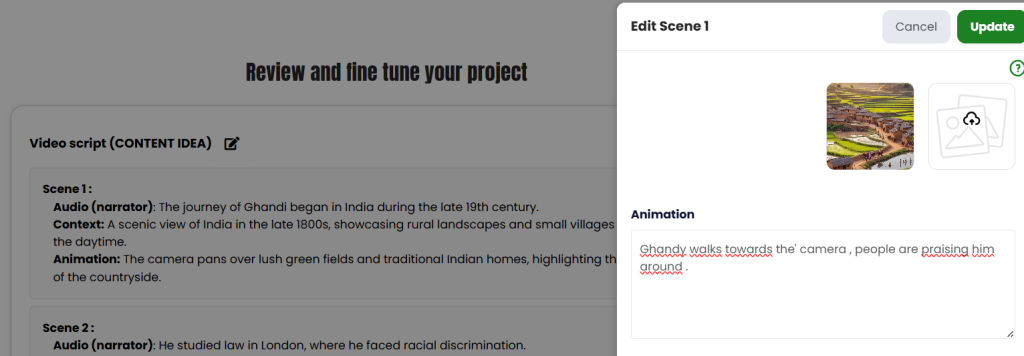
Save Your Changes
Click on the “Update” button to save. Then do the same with every scene of the video.
By doing this, our AI agent will produce the best result, while you’re having a tea or a coffee. ☕
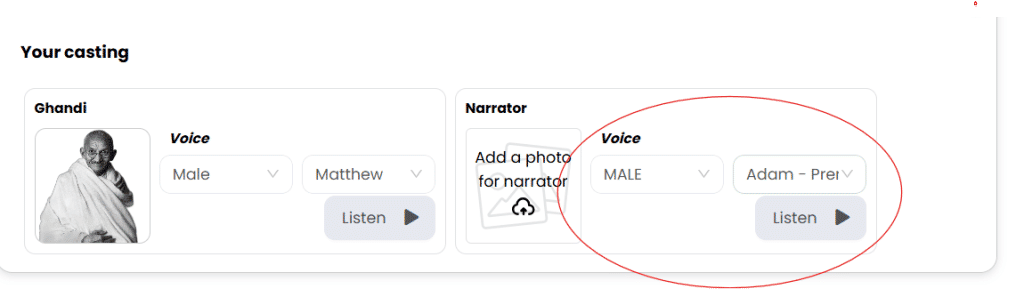
Select Voices for Each Character
Select the voices that you like for each character. This personalizes your video and makes it more engaging.
Generate Your Video!
Click on Generate Video and let the magic happen!
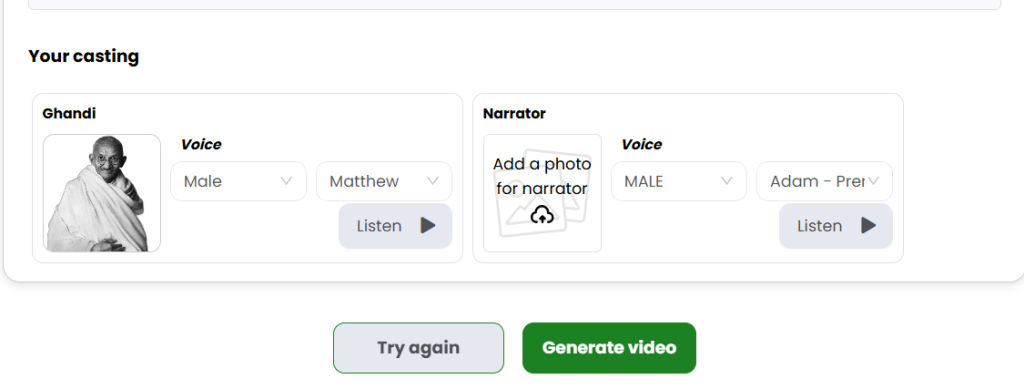
If you’re not happy with the generated script, just click Try again, adjust your initial prompt, and start over.
✨ Best Practice: Following the steps above to generate your video with AI will give you the best results while using the least amount of credits.
📺 Watch the Complete Tutorial
Learn how to tune your script with photos and more to get the best AI video generated
Ready to Create Your Perfect AI Video?
Put these tips into practice and create stunning videos that match your exact vision.
Start Creating Now