
🎬 Characters can speak and dialogues in your videos!
You’ve written your prompt and generated your first video with Reeporter AI.
In this first step, Reeporter shows you the complete script of your upcoming video.
Take a moment to review it carefully and make sure everything fits your vision before moving on to customization.
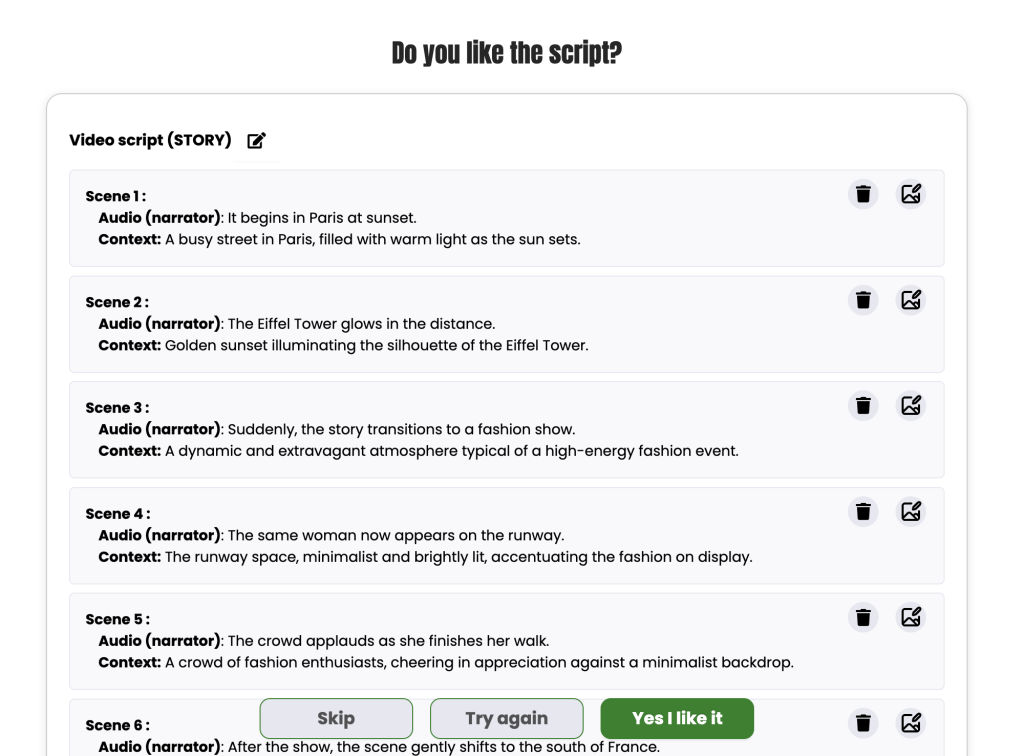
Watch this example featuring three characters interacting throughout the story, each adding their own energy and personality to the scene.
Character 1 : (exemple : Mme Jenkins)
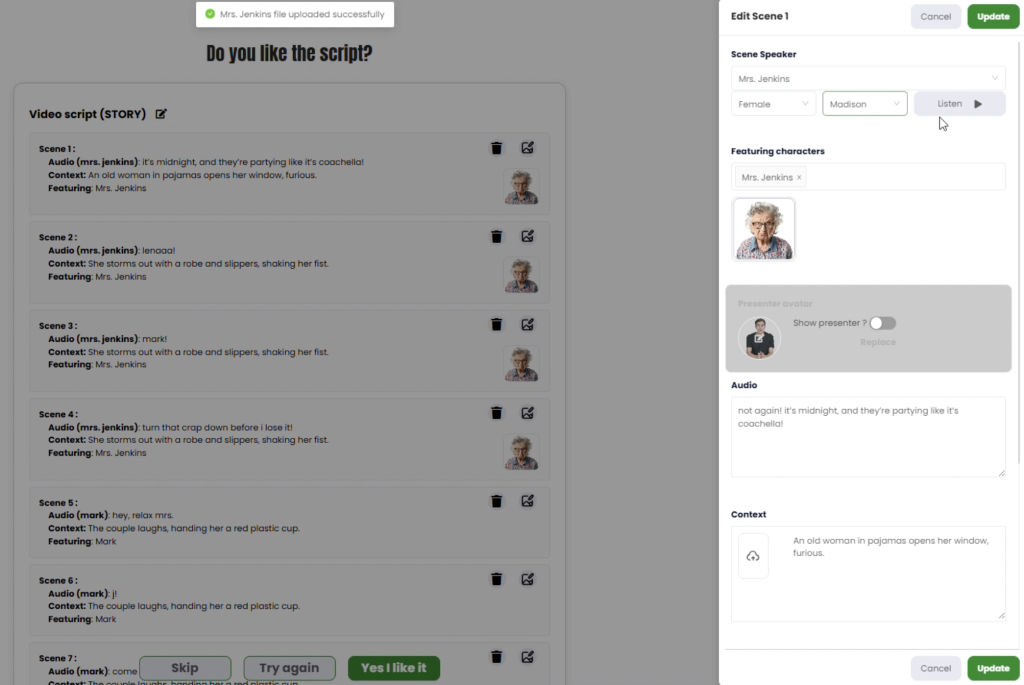
1️⃣ Select the characters to display in the scene.
You can add multiple characters for a scene though we recommend to limit to 3 characters max per scene. People not really actors of the video, are not considered as characters.
Add a photo of the characters playing, the photos will be kept for all the video.
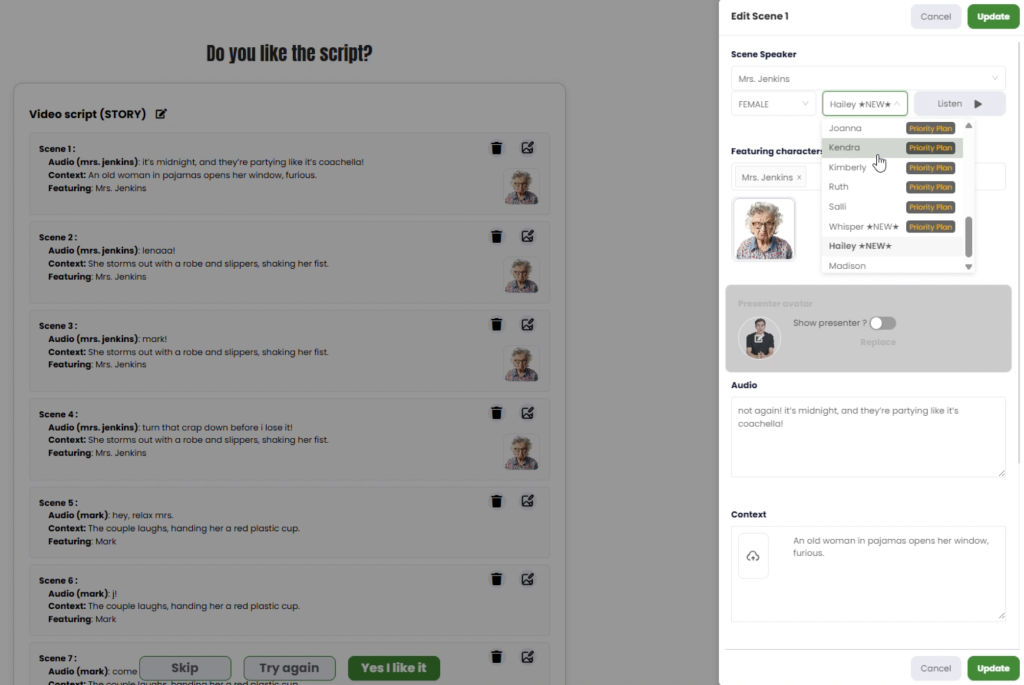
2️⃣ Choose the voice
Pick the perfect voice for your characters.
3️⃣ Audio : this text will be said.
Write the text your character must pronounce in the scene.
Warning : Only one character can speak per scene. To create dialogues, you must alternate the speaker per scene.
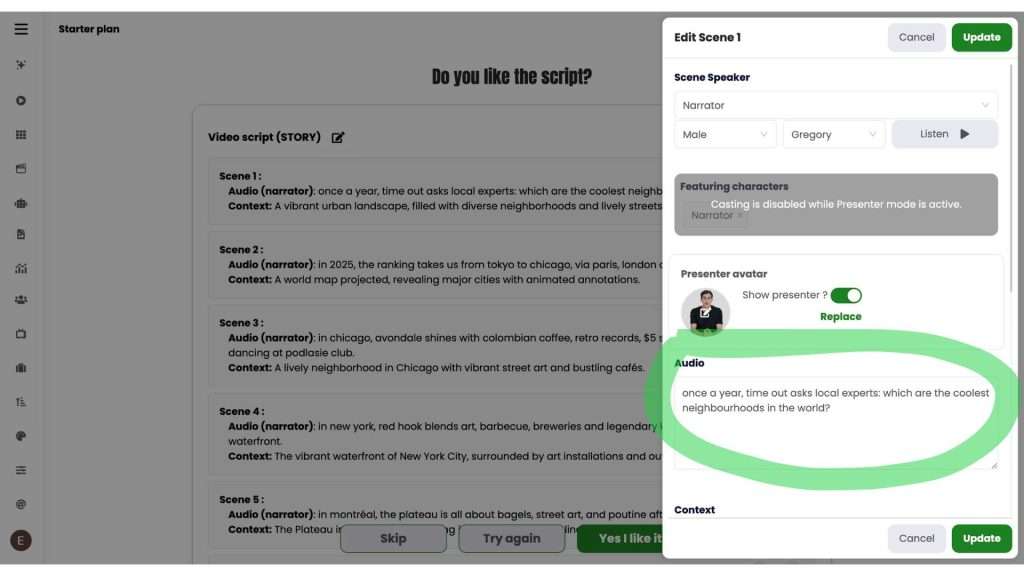
4️⃣ Context : You can create the context of your scene in 3 ways:
- By generating it with the AI tool of your choice (Nano Banana, ChatGPT, Kling, etc.)
- By uploading an image from your device
- Or by describing the context directly in the “Prompt” box
If you generate multiple images and only select one, the others are not lost — they are automatically saved in the “Library” tab, so you can reuse them later. ✅
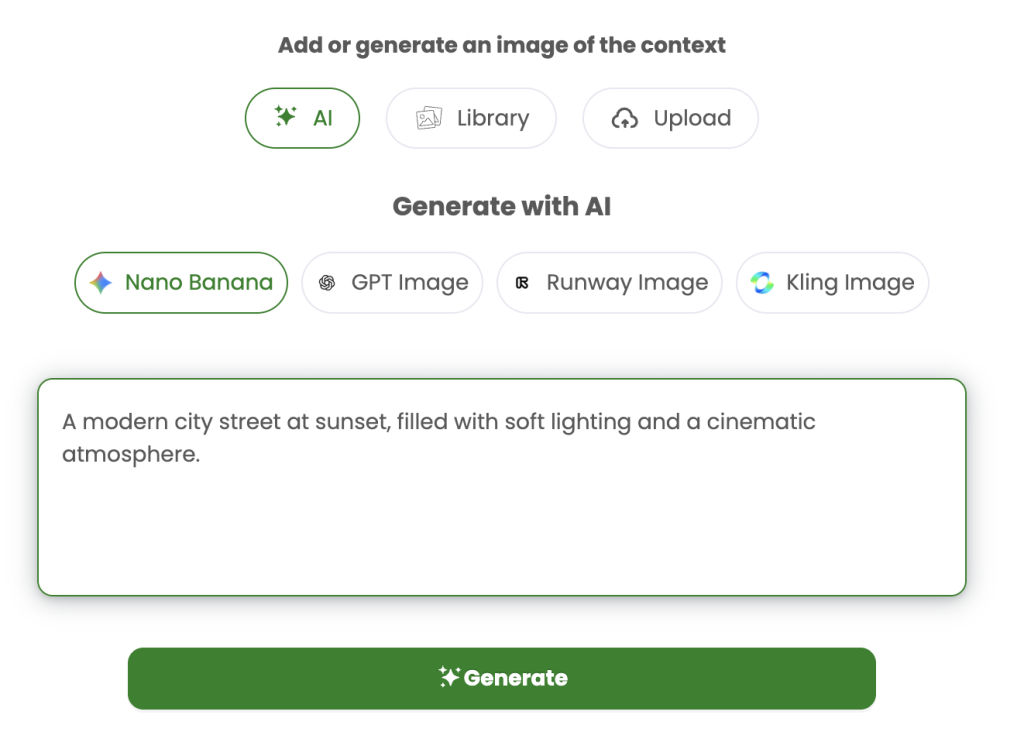
The context field describes where the scene is happening, you can add one or two images and add a text to describe it , or just write the text where the presenter will be.
Exemples : A modern TV studio overlooking New York City OR The pier on the beach of Santa Monica with the big wheel turning OR Down the Eiffel Tower in Paris with toursits wamlking around OR , A starbuckcoffee with people sitting and talking
Your presenter will be talking in the context that you decided.
5️⃣ Animation
Describe the animation you want, and make sure to specify that the character must speak.
Ex: the presenter is walking and talking or The camera zooms on the face of the presenter that is talking.
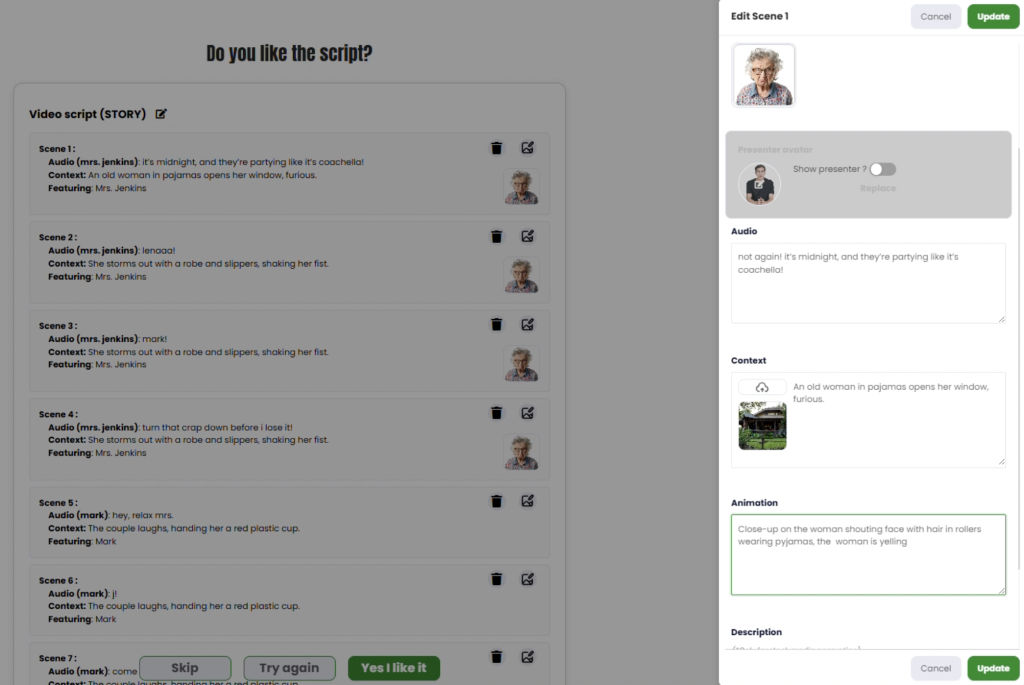
✨ And voilà! your characters don’t just appear, they act and talk naturally in your videos!
Character 2: (exemple : Mark )
1️⃣ Select the characters to display in the scene
Add a photo of the characters playing, the photos will be kept for all the video.
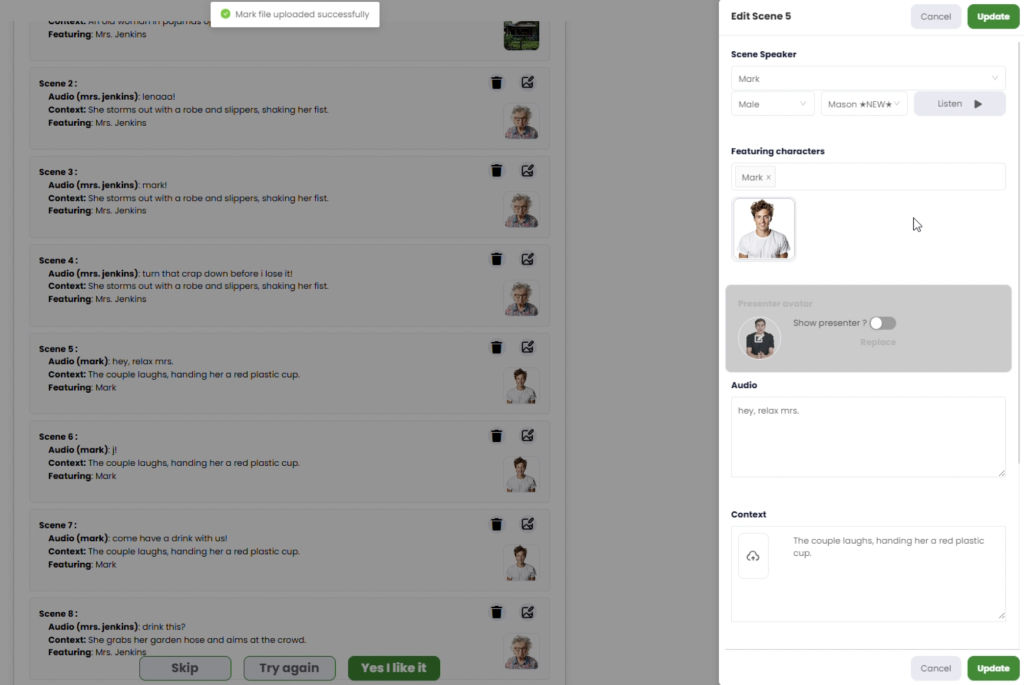
2️⃣ Choose the voice
Pick the perfect voice for your character .
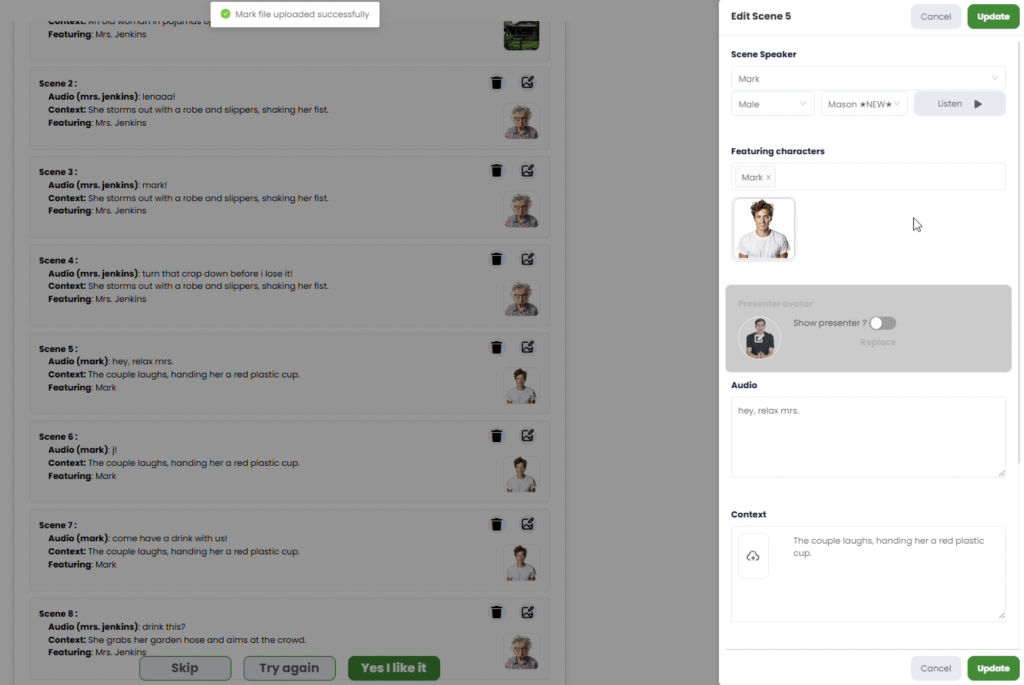
3️⃣ Audio : this text will be said.
Write the text your character must pronounce in the scene.
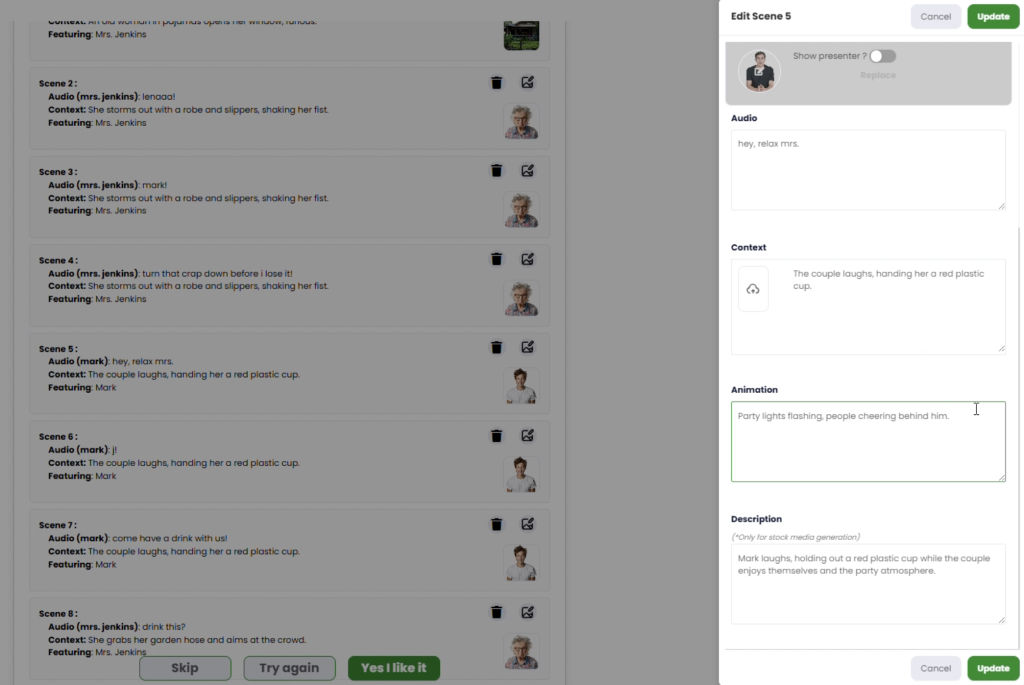
4️⃣ Context : 4️⃣ Context : You can create the context of your scene in 3 ways:
Or by describing the context directly in the “Prompt” box
By generating it with the AI tool of your choice (Nano Banana, ChatGPT, Kling, etc.)
By uploading an image from your device
5️⃣ Animation
Describe the animation you want, and make sure to specify that the character must speak.
Ex: the presenter is walking and talking or The camera zooms on the face of the presenter that is talking.
Character 3: (exemple 3 :Police Officer)
1️⃣ Select the characters to display in the scene
Add a photo of the characters playing, the photos will be kept for all the video.
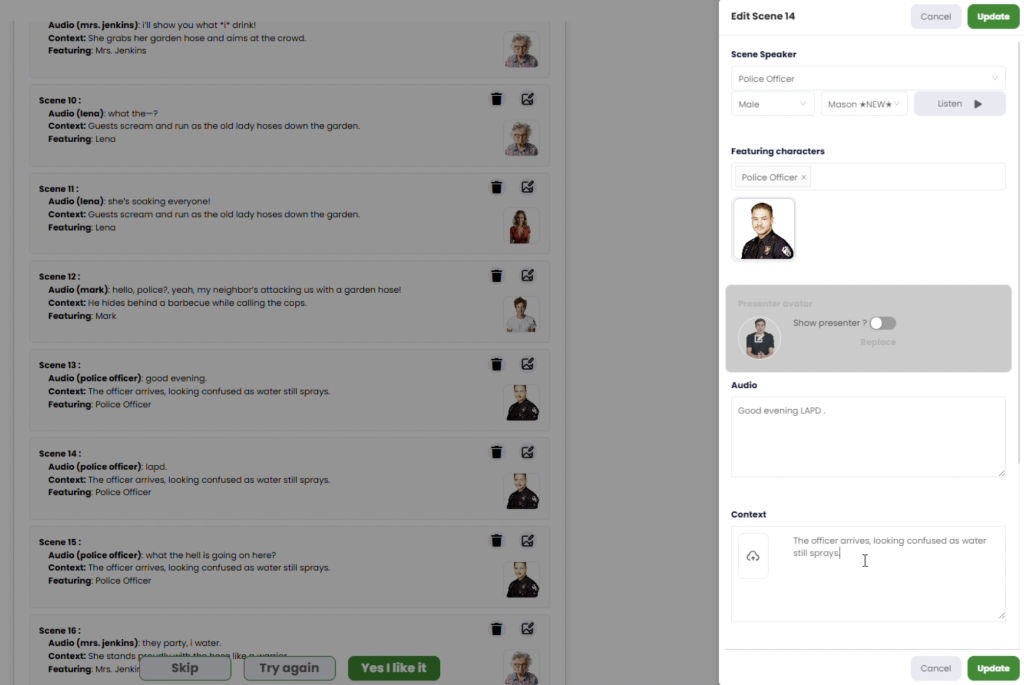
2️⃣ Choose the voice
Pick the perfect voice for your character .
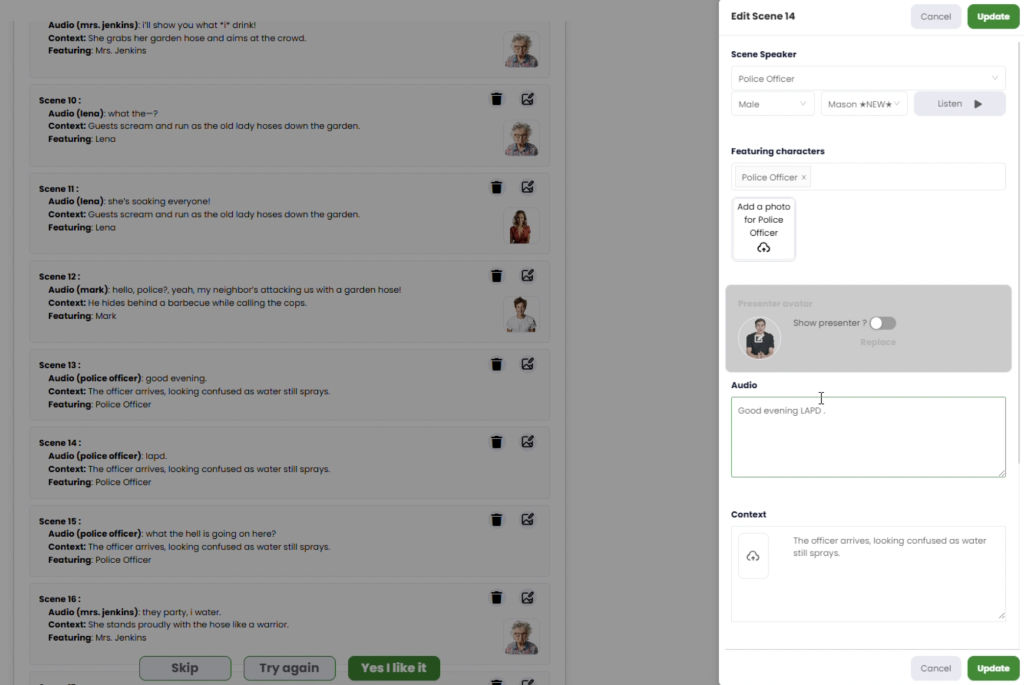
3️⃣ Audio : this text will be said.
Write the text your character must pronounce in the scene.
4️⃣ Context : 4️⃣ Context : You can create the context of your scene in 3 ways:
Or by describing the context directly in the “Prompt” box
By generating it with the AI tool of your choice (Nano Banana, ChatGPT, Kling, etc.)
By uploading an image from your device
5️⃣ Animation
Describe the animation you want, and make sure to specify that the character must speak.
Ex: the presenter is walking and talking or The camera zooms on the face of the presenter that is talking.
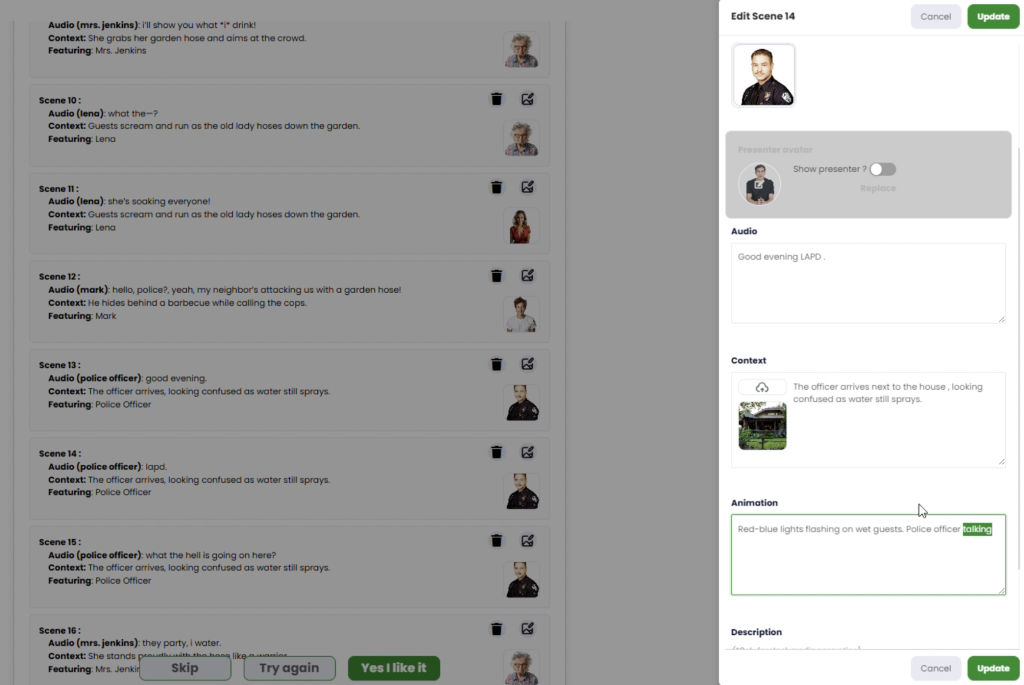
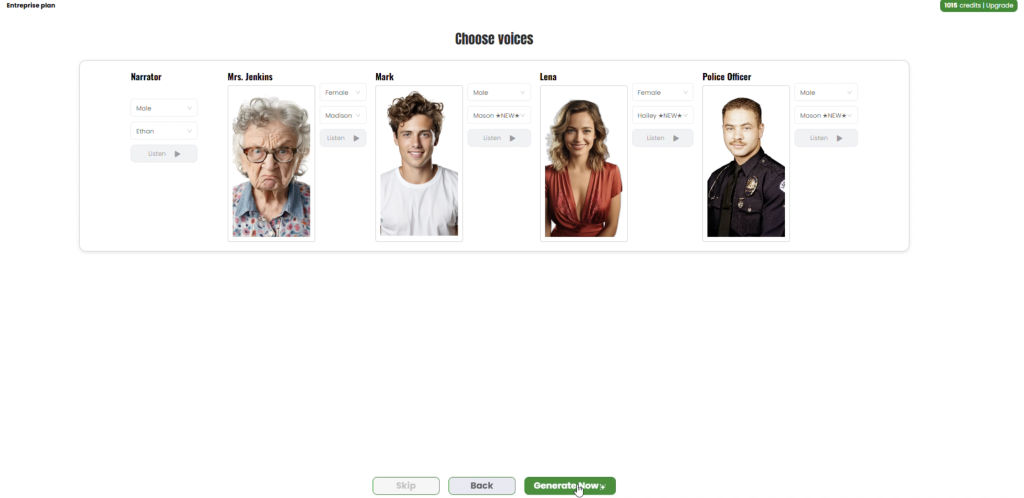
Once you’ve finished your customizations, Selected the Full AI Media generation mode, then you’ll see a summary of your video’s cast along with their assigned voices, which you can still modify before finalizing your video.
Once all your customizations are confirmed, here’s the final result of your video 🎬
Now it’s your turn to try it out and create your own with Reeporter AI! 🚀